
The following instructions describe how to export your transaction data from Wealthsimple, and subsequently import the data into AdjustedCostBase.ca.
Please note that uploading data from a spreadsheet requires an AdjustedCostBase.ca Premium subscription.
Wealthsimple provides transaction data in 2 formats: Activities Export and Monthly Statement CSV. We recommend choosing the Activities Export method, but both methods are supported by AdjustedCostBase.ca and there is a settings template available for each one. Depending on your choice, follow either the instructions under Option A (Activities Export) or Option B (Monthly Statement CSV) to complete the process of exporting your transaction data.
Option A: Activities Export from Wealthsimple (Recommended)
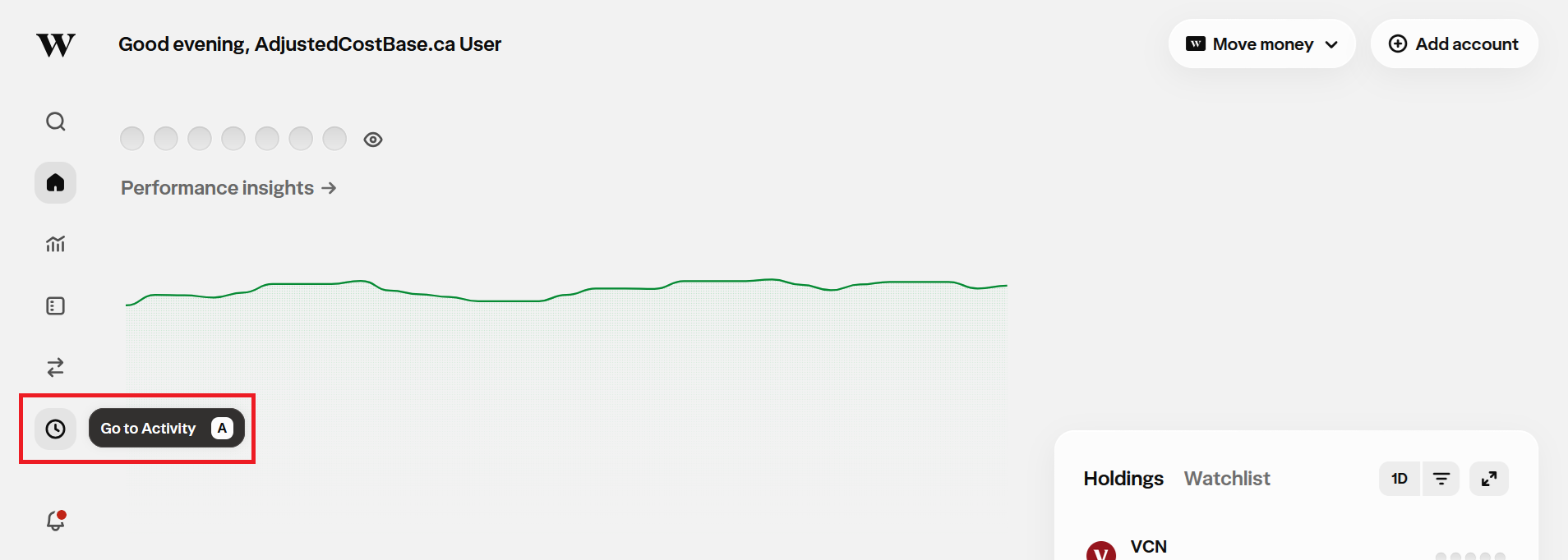
- Login to your Wealthsimple account through their web interface. Follow the “Activity” link found on the sidebar on the left side of the page.
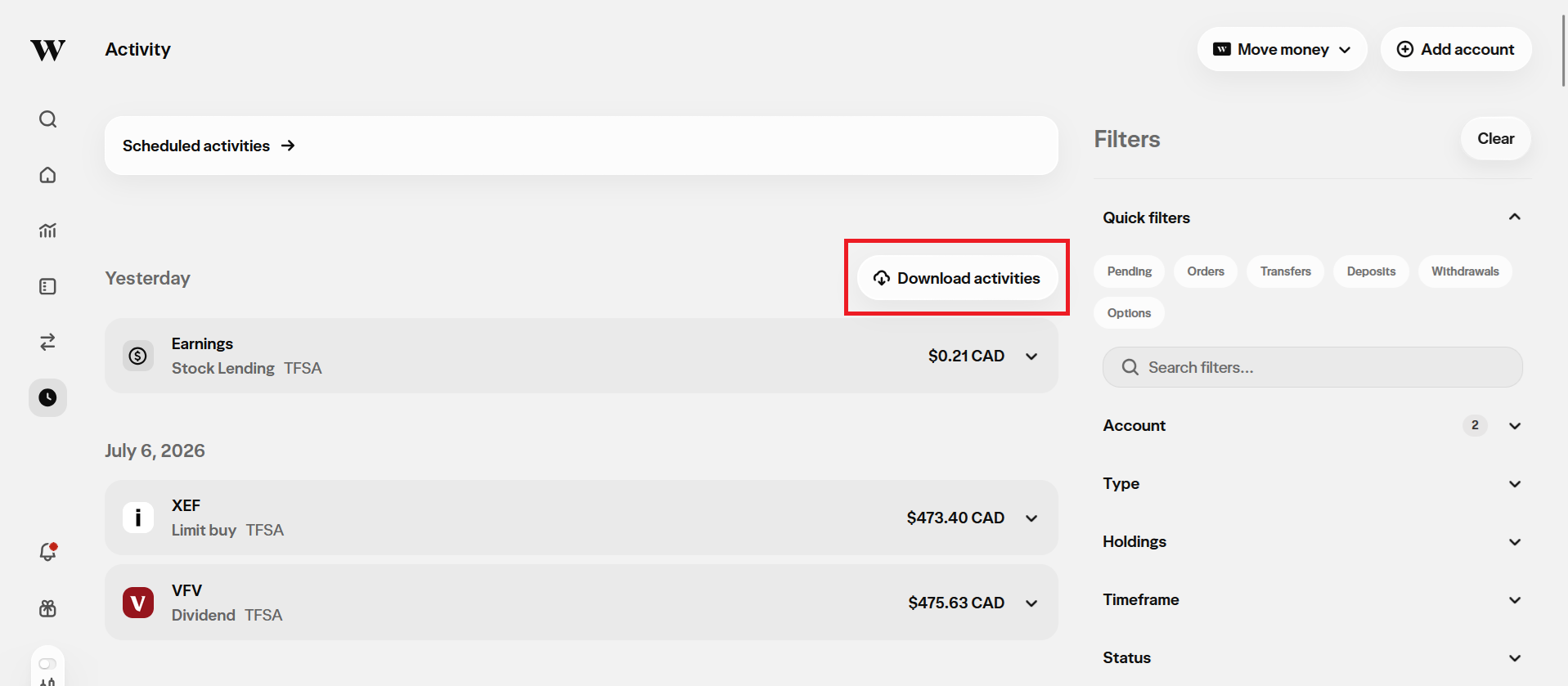
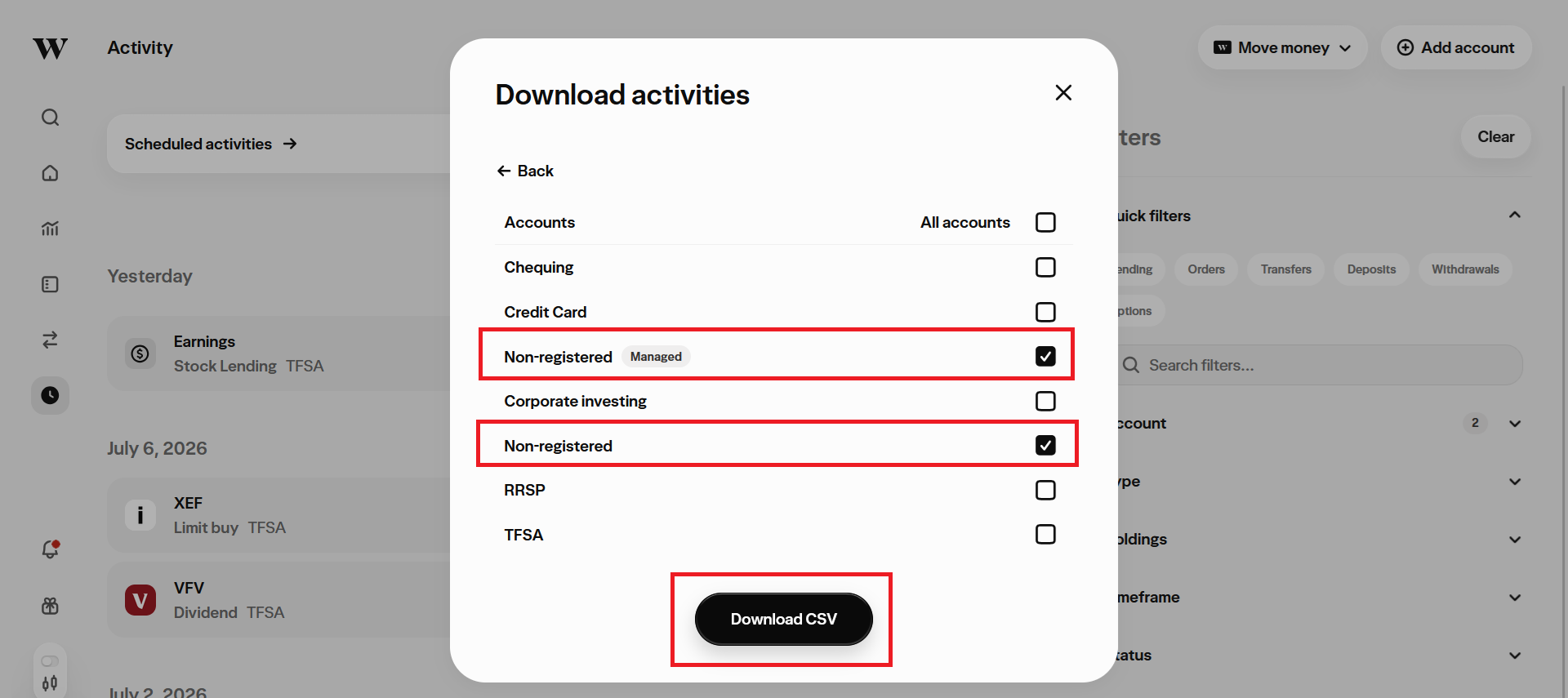
- Click on the “Download activities” button.
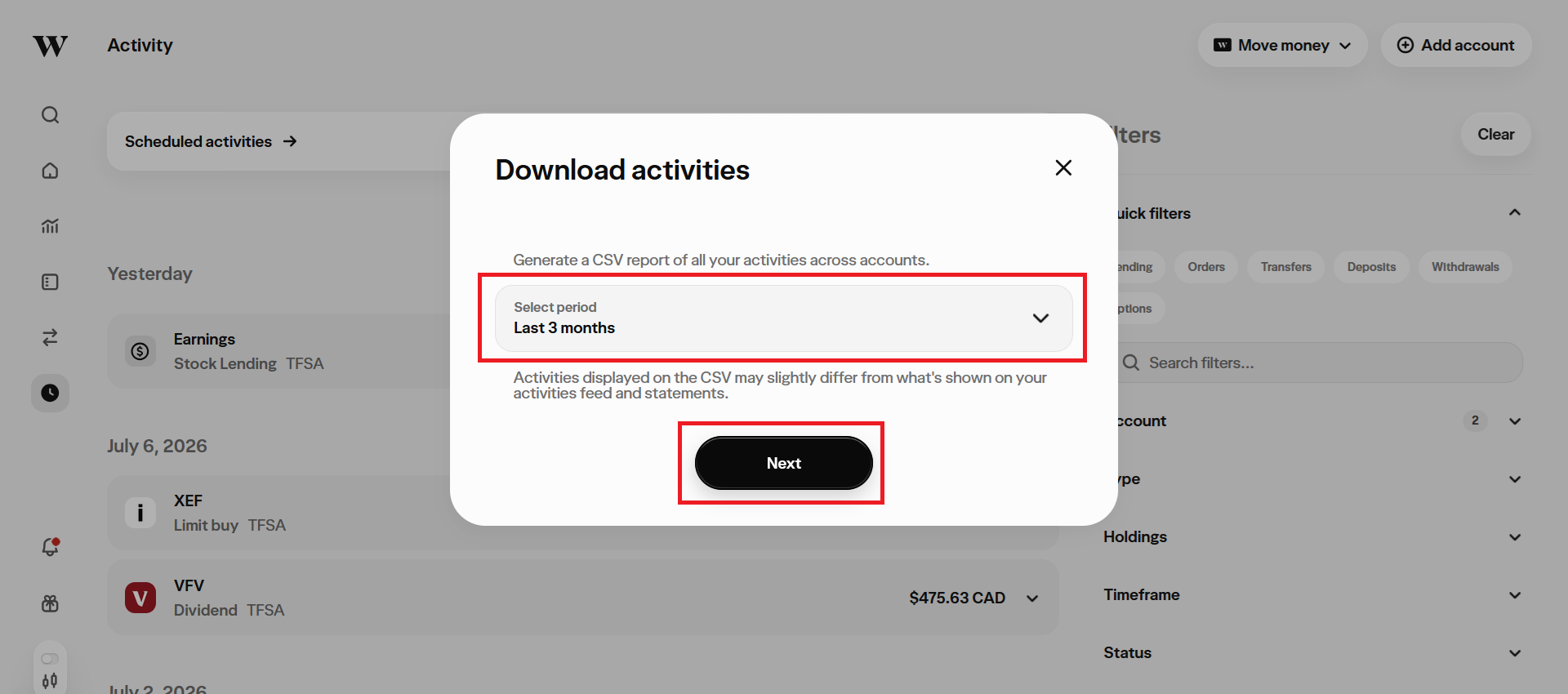
- Select the appropriate date range. It should cover the time period spanning back to the last time your importing your transactions into AdjustedCostBase.ca. It’s perfectly fine for the time window to overlap with the time window of the transactions you previously imported into AdjustedCostBase.ca: any duplicate transactions will be automatically flagged and excluded.
- Select the relevant accounts associated with the portfolio on AdjustedCostBase.ca that you’re working with. Normally you should use a portfolio to represent all your transactions across all your personal non-registered accounts, so make sure you select them all in this case. Next hit the “Download CSV” button to download your transaction data.
Here is an example of the activities export data format:

Option B: Monthly Statement CSV Export from Wealthsimple
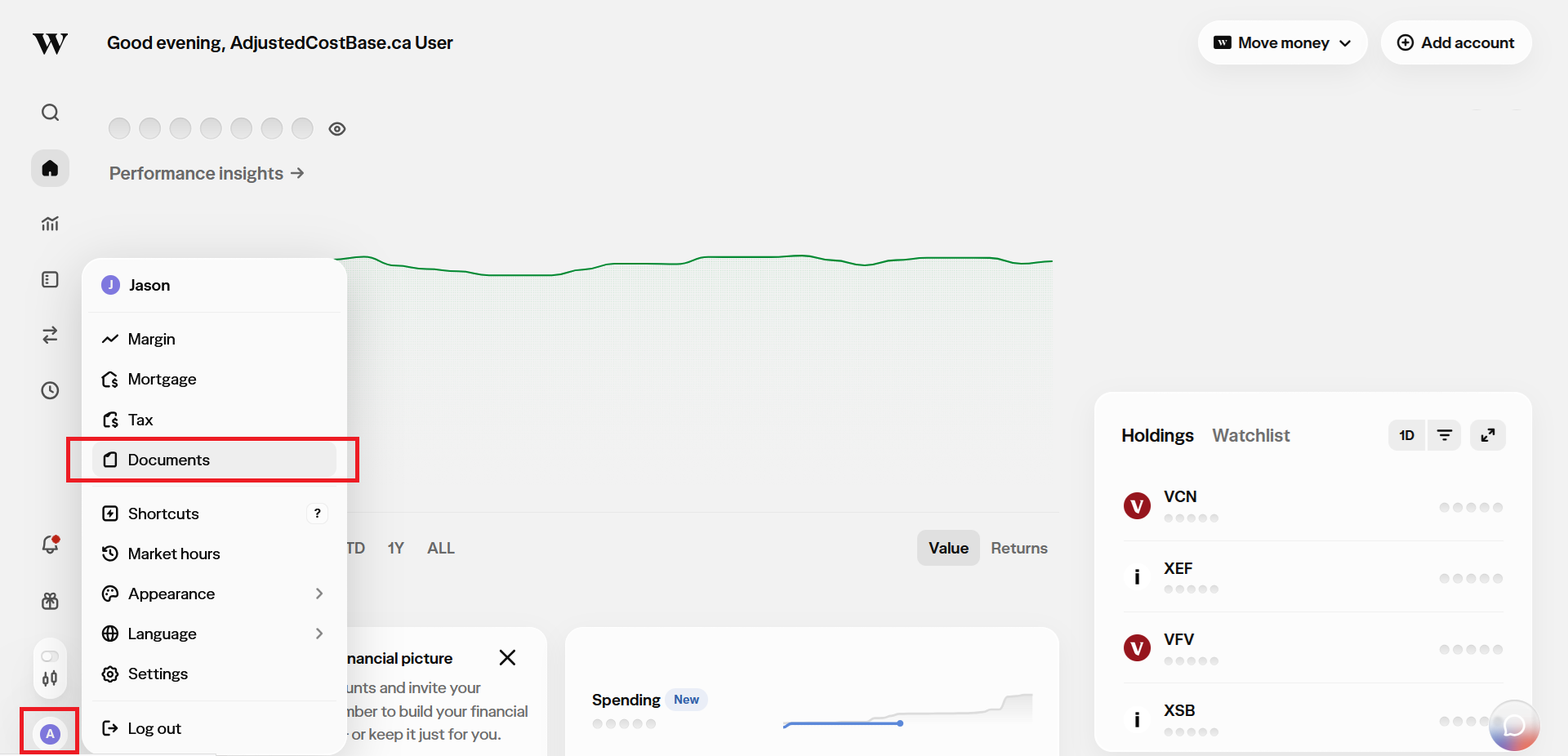
- Login to your Wealthsimple account through their web interface (please note that monthly statements are available via Wealthsimple’s mobile app – but only in PDF format rather than the required CSV/spreadsheet format). Click on your initial on the bottom left of the screen, and then follow the “Documents” link.
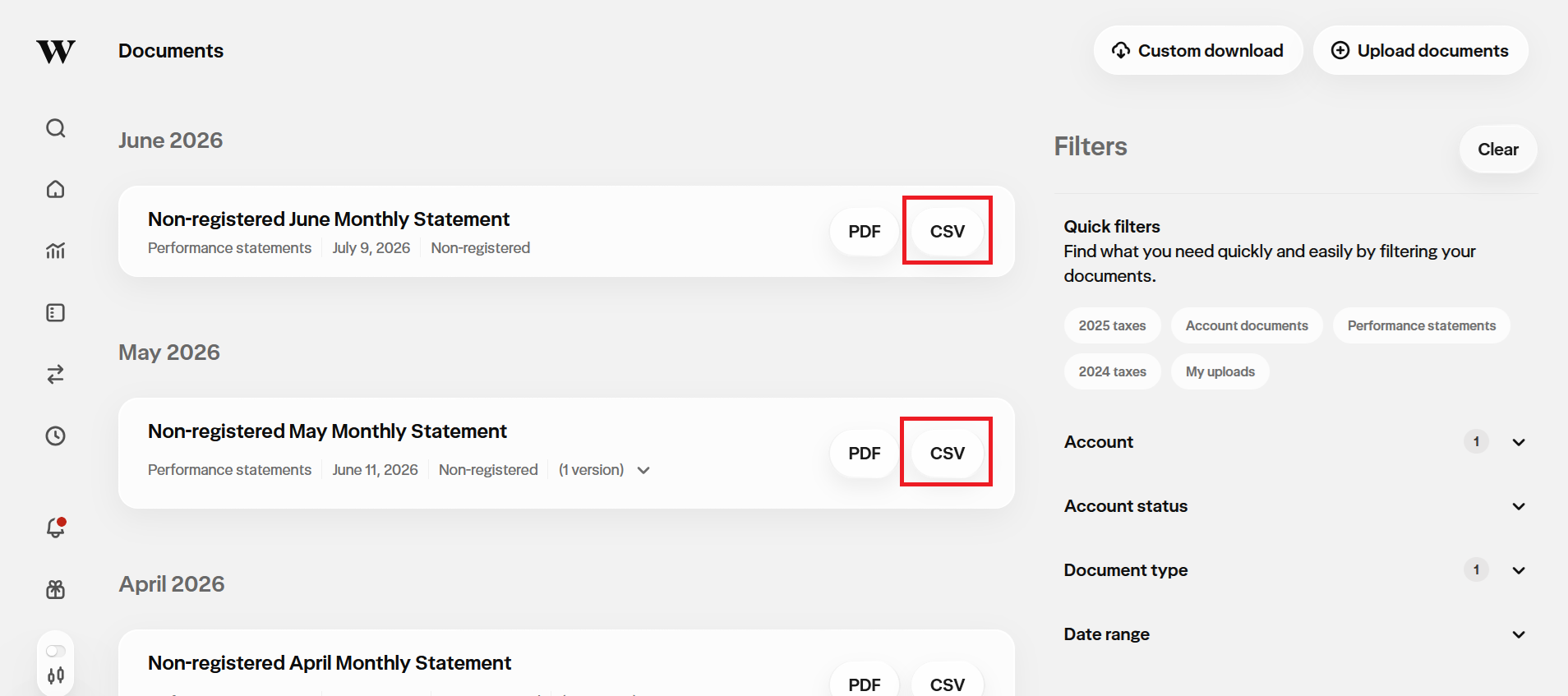
- Find the relevant monthly statements (you can filter by account and by setting the document type filter to “Performance statements” to narrow down your search). Click on the “CSV” links to export your transactions to a spreadsheet file for each month.
Upload your Wealthsimple Transactions to AdjustedCostBase.ca
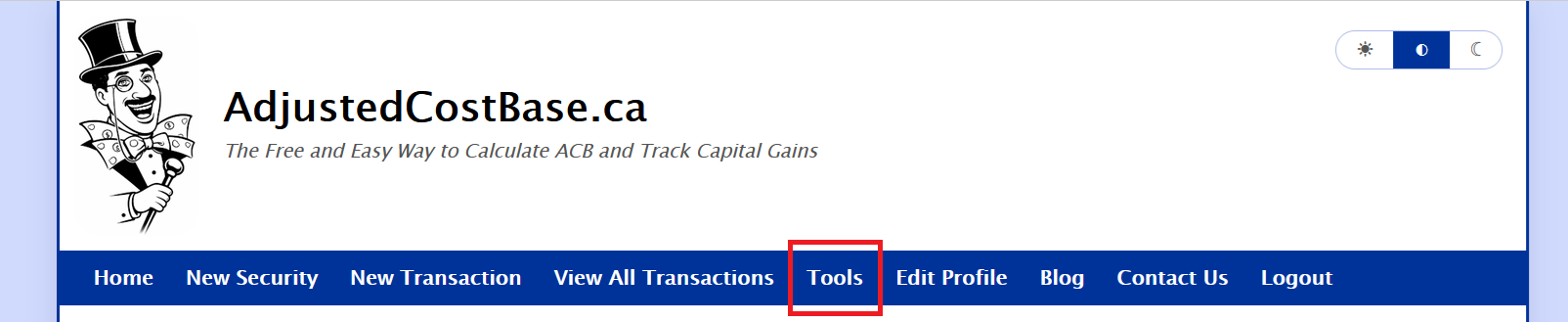
- After logging into AdjustedCostBase.ca, click the “Tools” link on the top blue menu bar.
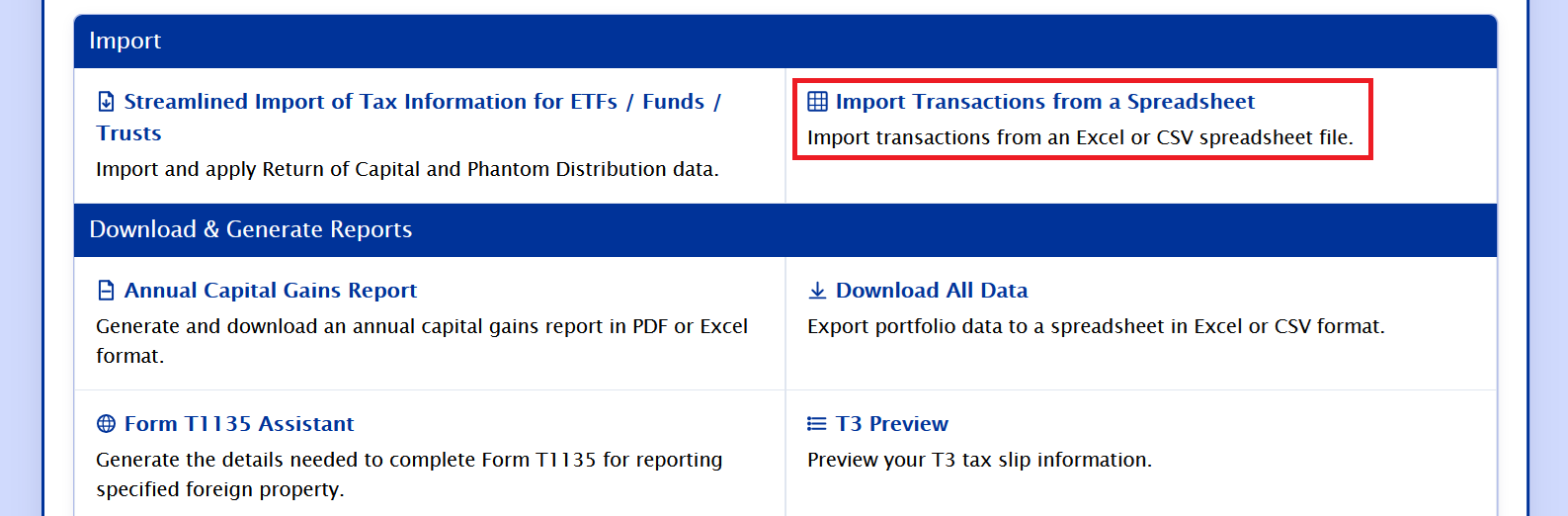
- Click the “Import Transactions from a Spreadsheet” link.
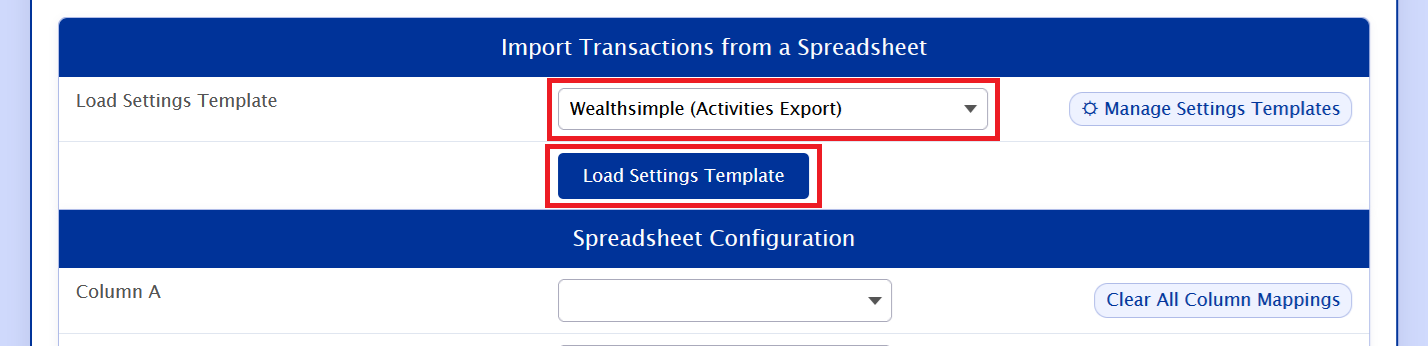
- Select either the “Wealthsimple Activities Export” or the “Wealthsimple Monthly Statement CSV” settings template (depending on whether you completed the steps under Option A or Option B above) from the list of available library templates and click “Load Settings Template”.
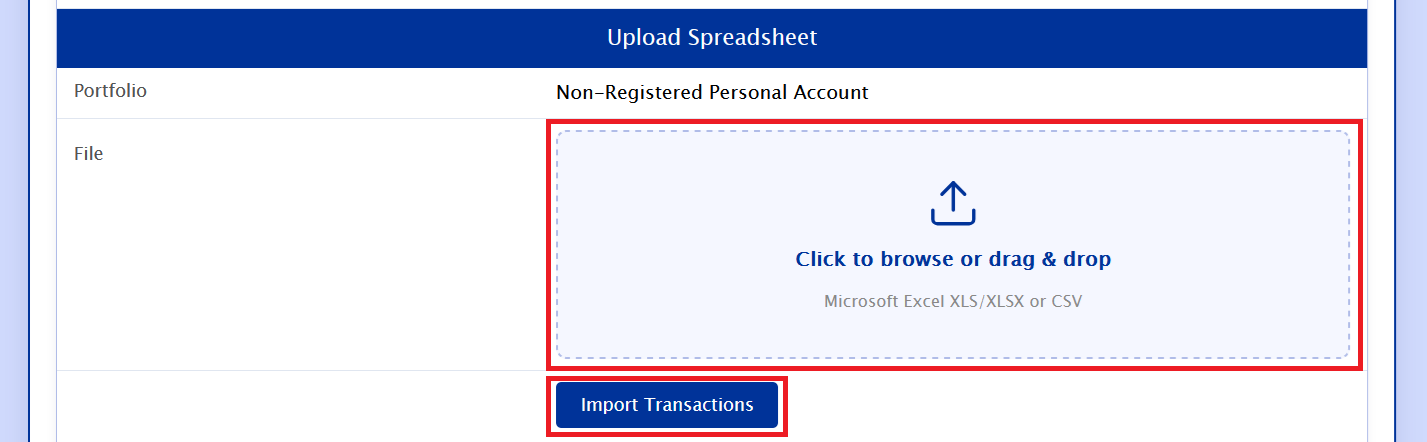
- Click on the “Click to browse or drag & drop box” to select the CSV file you downloaded from Wealthsimple (or drag and drop it into the box). Click “Import Spreadsheet”.
- Review your transactions for completeness and accuracy. Please note that any rows that already map to existing transactions will be flagged as duplicates and excluded from the import. Only purchases, sales, and DRIP transactions need to be imported; other transaction types, such as cash dividends or cash transfers across accounts, do not need to be imported into AdjustedCostBase.ca. These transactions will be ignored when using either of the Wealthsimple template configurations.
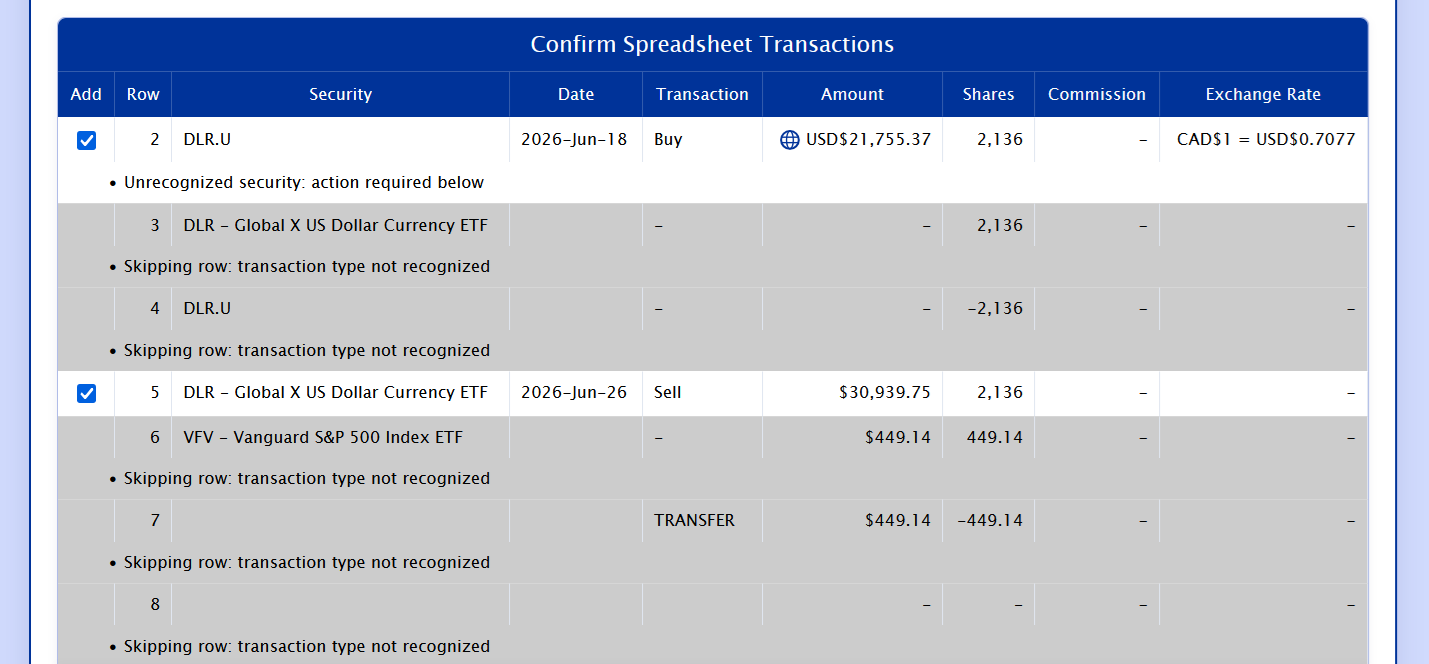
- Map unrecognized securities if necessary. If the data includes purchases and sales of securities that haven’t been added to AdjustedCostBase.ca, select the “Add as New Security” option. If a security name isn’t recognized but corresponds to an existing security on AdjustedCostBase.ca, choose the “Map to Existing Security” option and select the appropriate security from the drop-down list. It is important to perform this process correctly to ensure that your transactions don’t get incorrectly split across multiple securities on AdjustedCostBase.ca. When using the “Map to Existing Security” option, by default (assuming you leave the “Save unrecognized security names as aliases for future imports” option enabled), we’ll remember the name mapping for your next import, making the process quicker and easier next time.
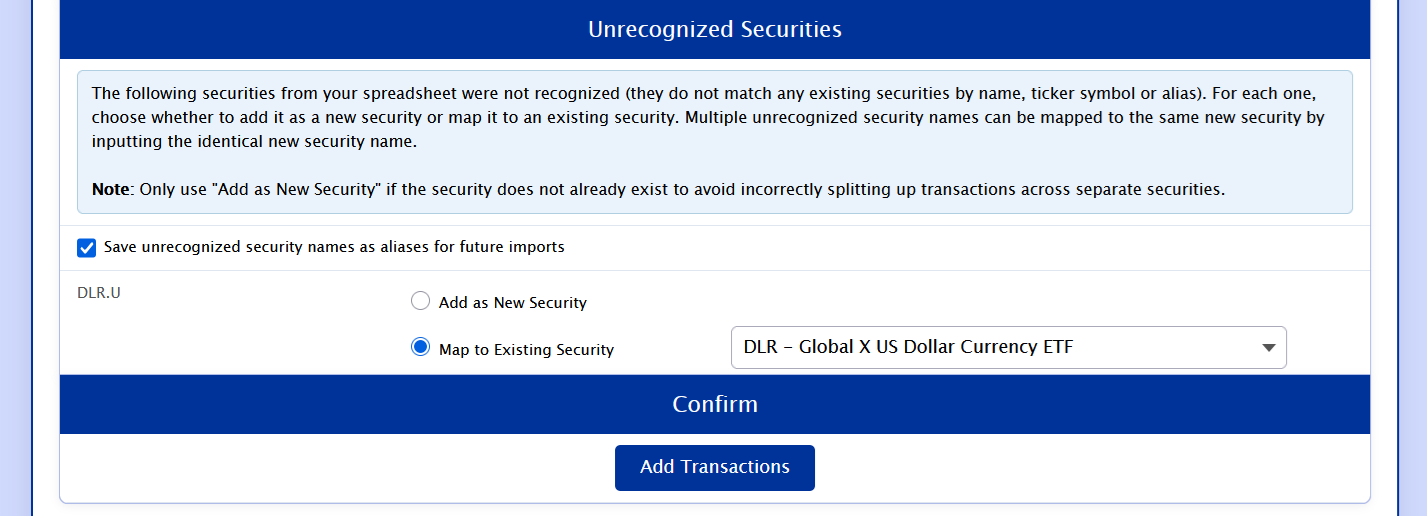
- Click “Add Transactions” to finalize the data import.

And you’re set! Repeat this process again for any other portfolios you have that include transactions from Wealthsimple accounts. And periodically download your latest transaction from Wealthsimple by following the steps outlined above to ensure your transaction records on AdjustedCostBase.ca are complete and accurate.