
The spreadsheet import functionality on AdjustedCostBase.ca enables you to easily import transactions from your TD Direct Investing accounts. We have a template readily available that is compatible with the TD Direct Investing CSV (comma separated value) format. Just follow the steps outlined below.
Please note that you’ll need access to AdjustedCostBase.ca Premium to unlock the spreadsheet import functionality.
Download your Data from TD Direct Investing
Important: TD Direct Investing provides access to download a variety of reporting data. For example, the data from the “Gain & Loss” tab for each account is available for download. They also provide an annual report called “Trade summary spreadsheet (CSV)”, which is accessible from the “Documents (eServices)” page via the “Tax Documents” tab. Don’t use either of these for AdjustedCostBase.ca data imports – stick with downloading data directly from the “Activity” tab for the relevant account(s), as described below.
- Log in to your TD Direct Investing account using the web interface.
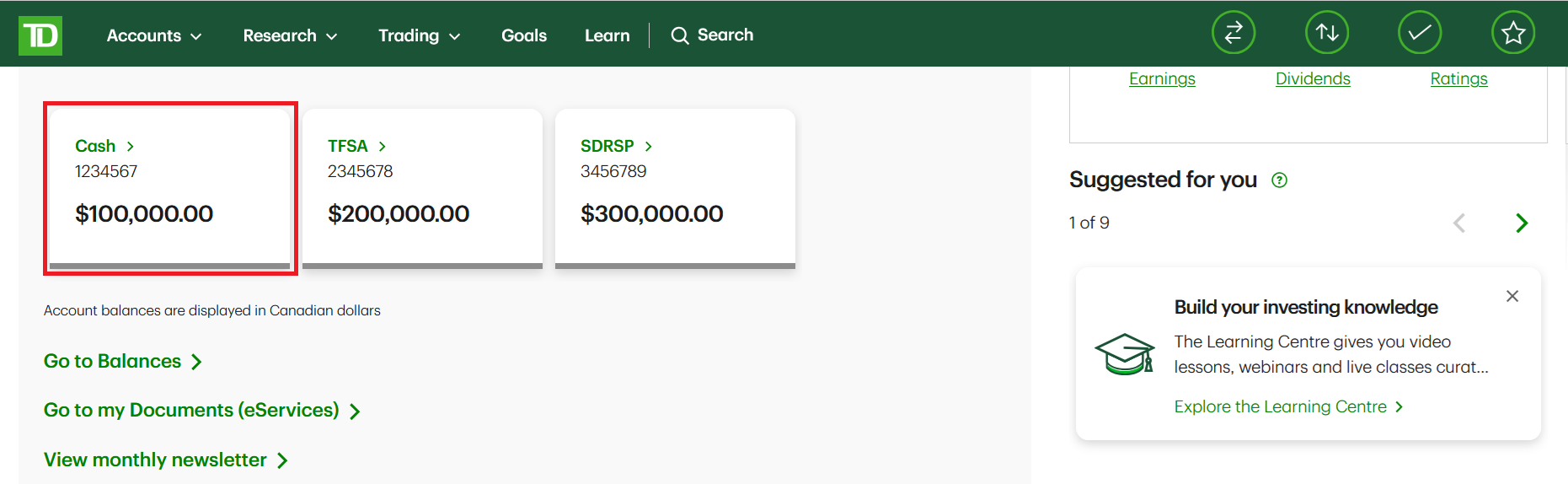
- Navigate to your Cash (non-registered) account.
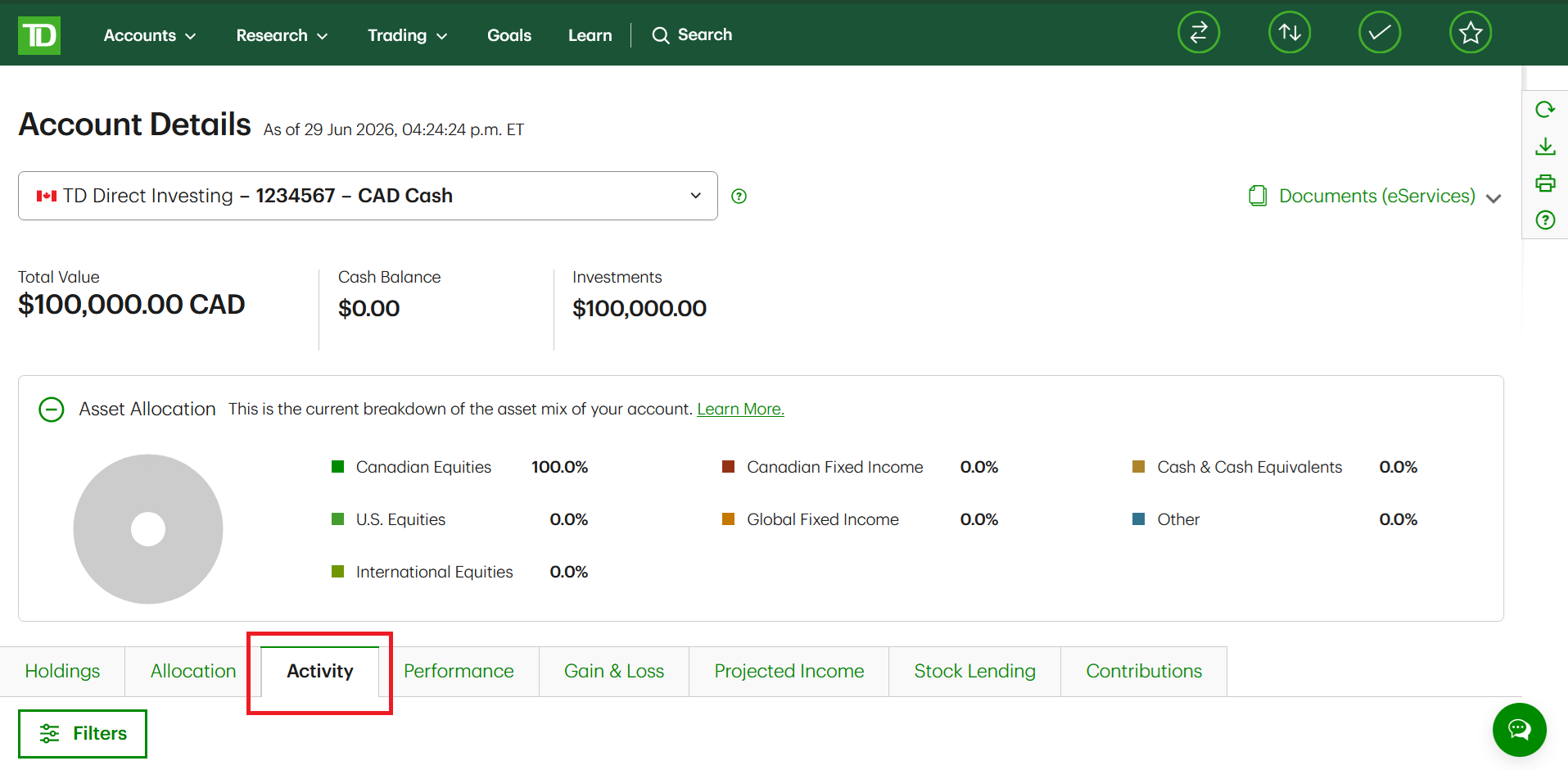
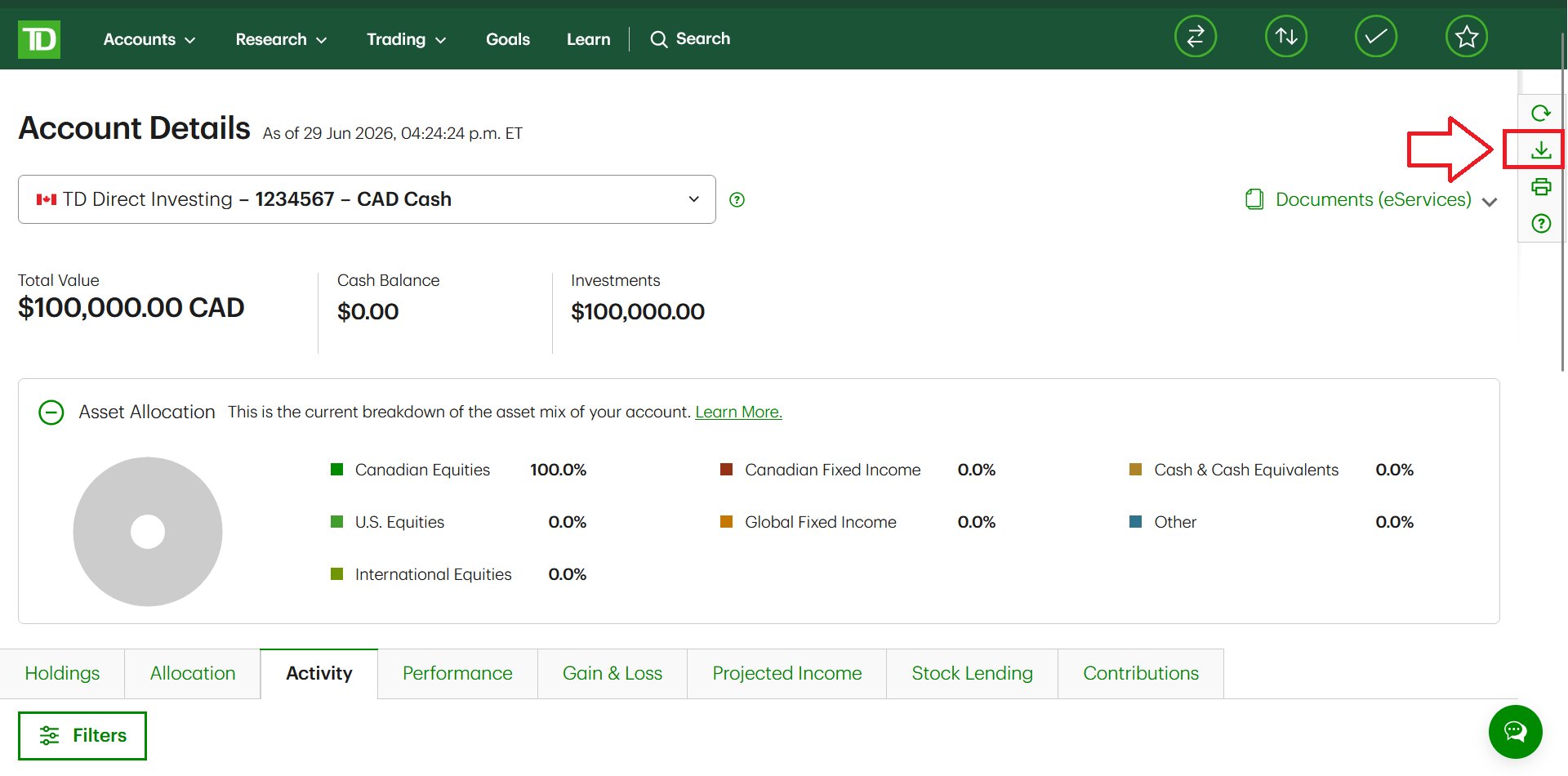
- Navigate to the “Activity” tab.
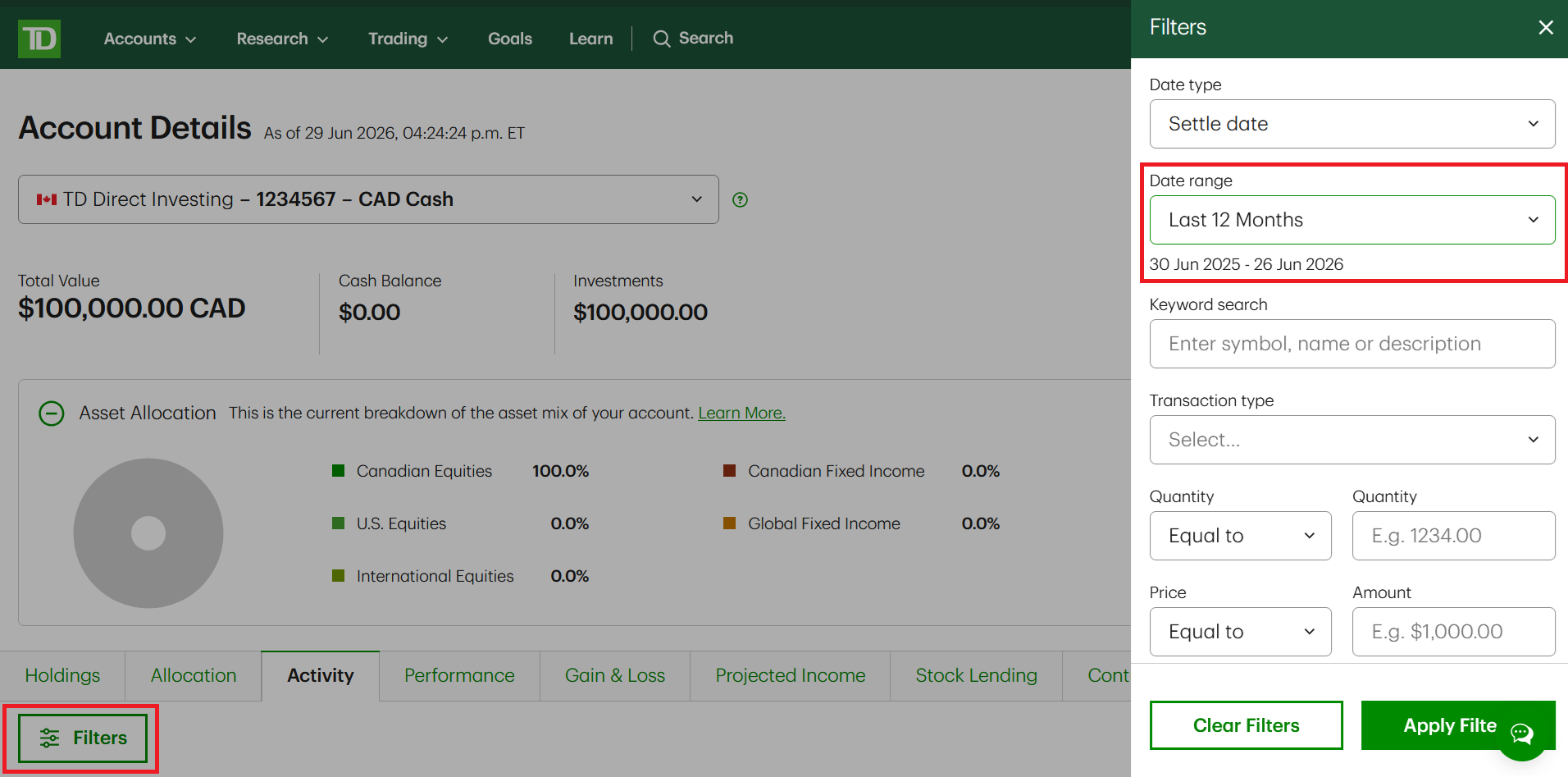
- Optional: Update the date range to include all the transactions you need to upload. For example, if you haven’t uploaded your transactions for the past year, ensure that the date range covers that time period. Please note: it’s perfectly fine to include a broader date range than necessary (you can include transactions that were previously imported). For example, you can upload a spreadsheet containing transactions from the past three months on a monthly basis. Duplicate transactions will be automatically detected and excluded from the data import.
- Click on the “Export” icon on the top right of the screen to save your transaction data to a local file in CSV (comma separated value) spreadsheet format.
- Repeat the above process for any other relevant accounts (for example, if you have a USD Cash account or a Corporate account). You do not need to track your ACB for registered accounts, so you can skip downloading data for any RRSP / TFSA / RESP / etc. accounts.
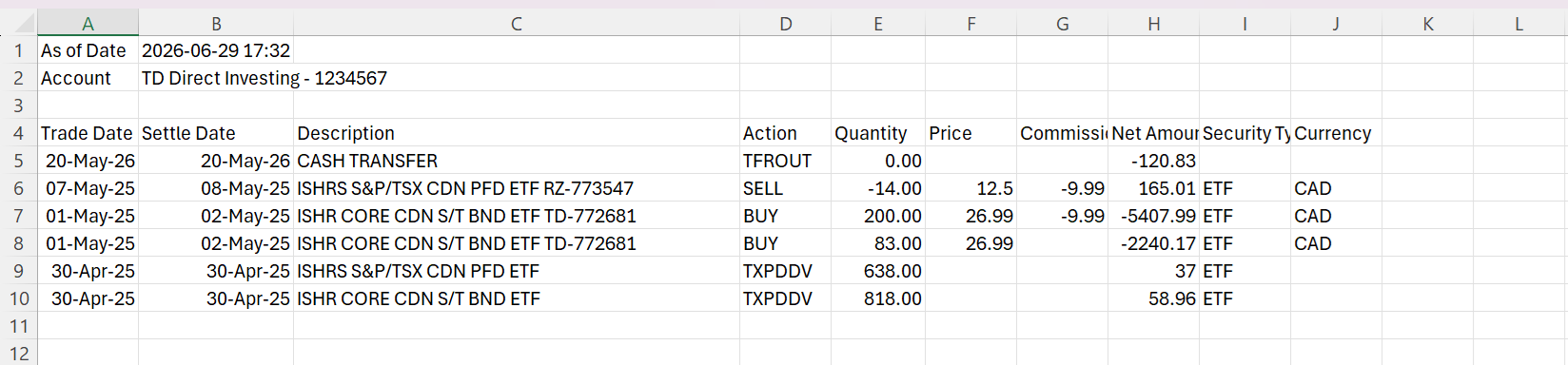
Here is an example is a CSV spreadsheet file containing transactions exported from TD Direct Investing:
Upload your TD Direct Investing Transactions to AdjustedCostBase.ca
After downloading the relevant transaction spreadsheets you’re all set to import the data into AdjustedCostBase.ca. Follow the steps outlined below.
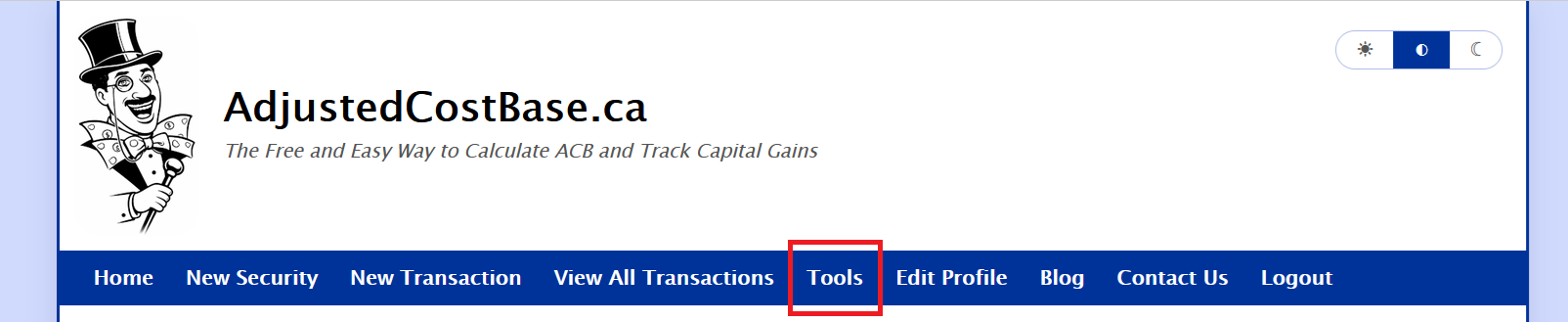
- After logging into AdjustedCostBase.ca, click the “Tools” link on the top blue menu bar.
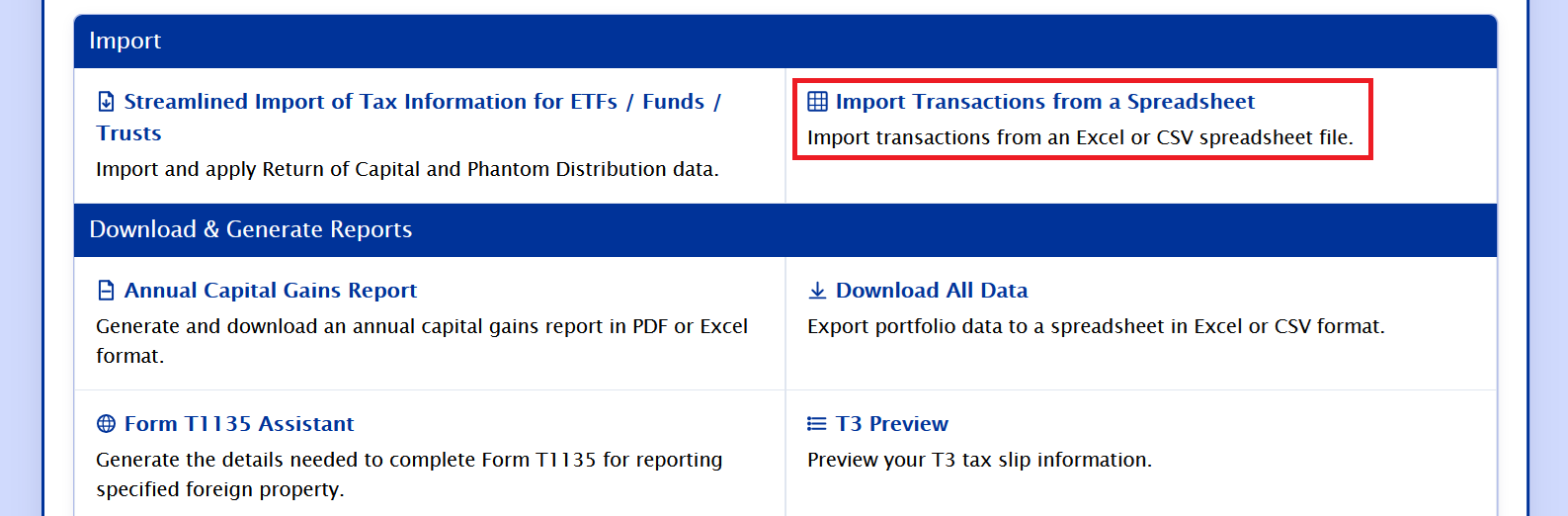
- Click the “Import Transactions from a Spreadsheet” link.
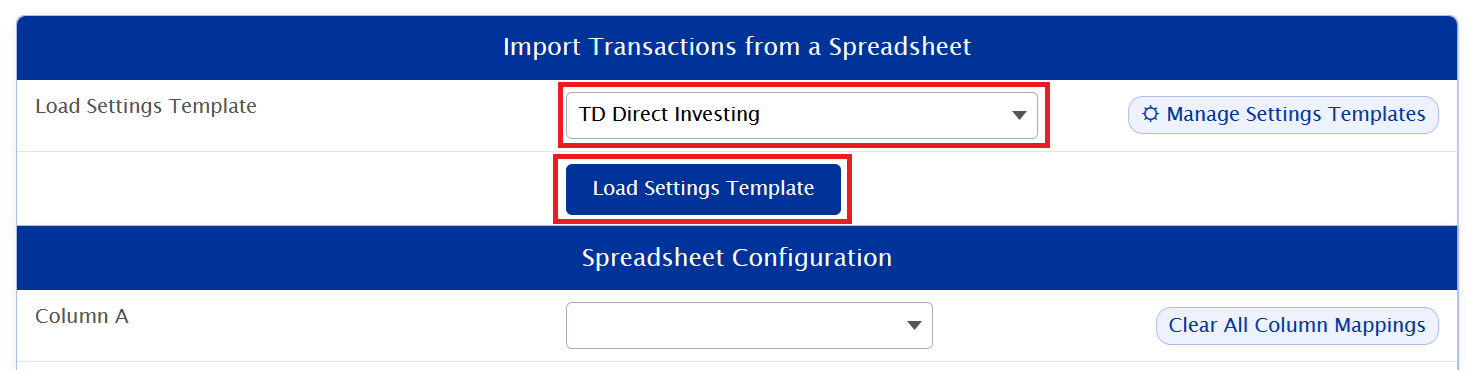
- Select the “TD Direct Investing” settings template from the list of available library templates and click “Load Settings Template”.
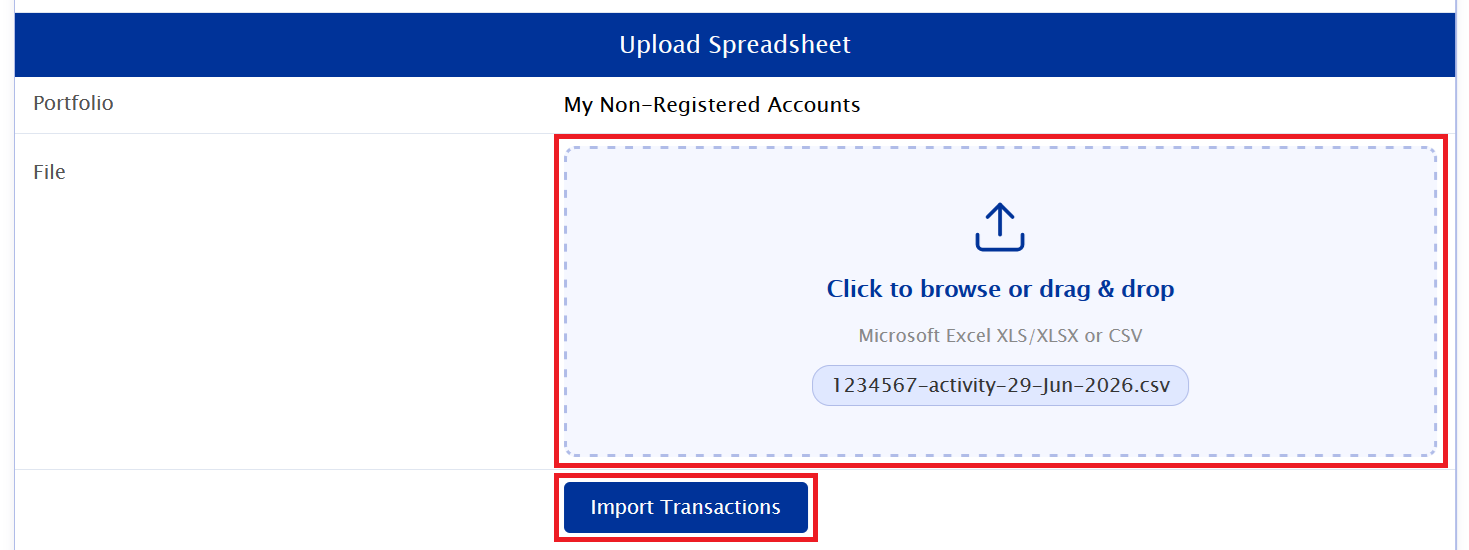
- Click on the “Click to browse or drag & drop box” to select the CSV file you downloaded from TD Direct Investing (or drag and drop it into the box). Click “Import Spreadsheet”.
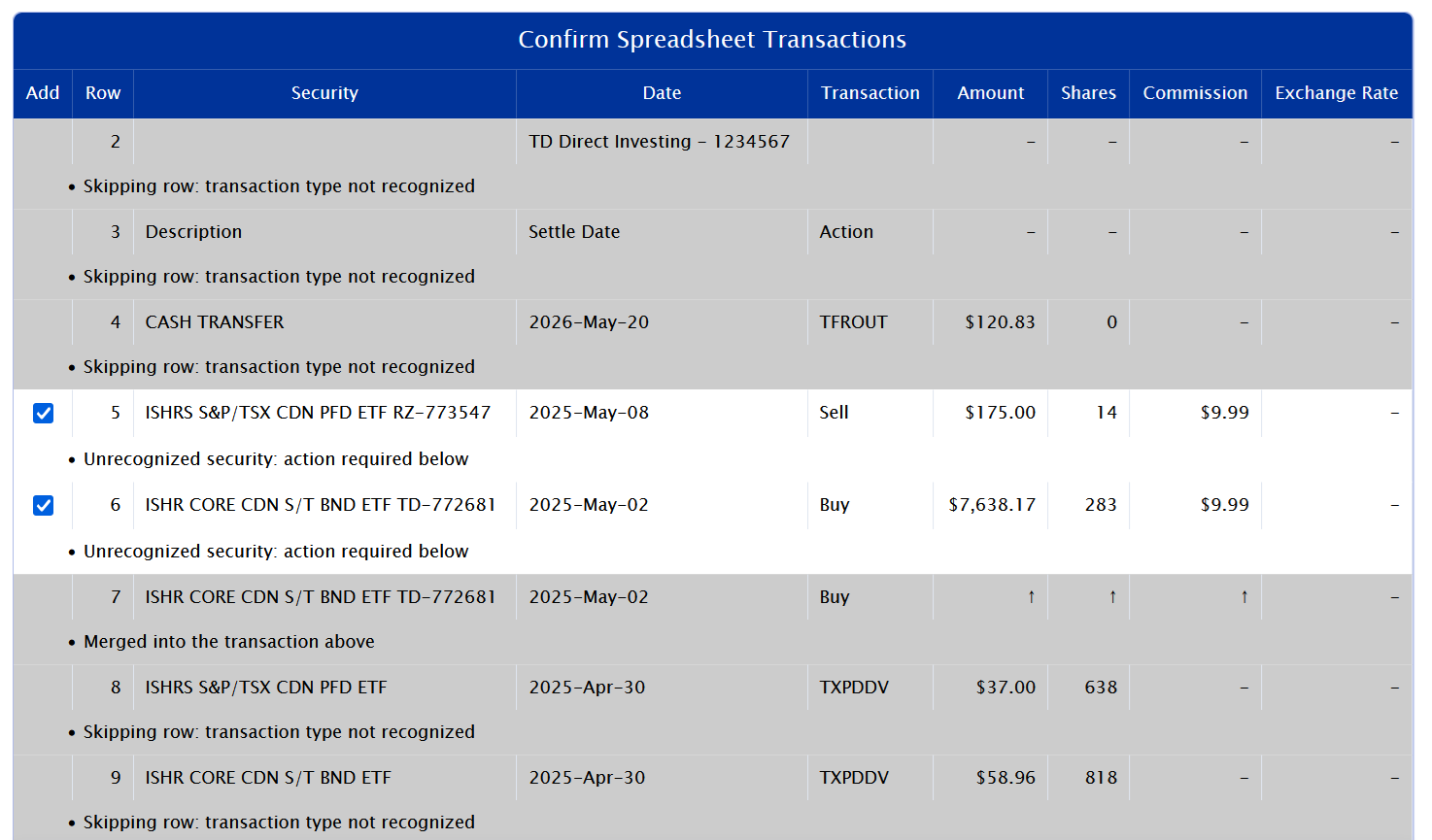
- Review your transactions for completeness and accuracy. Please note that any rows that already map to existing transactions will be flagged as duplicates and excluded from the import. Only purchases, sales, and DRIP transactions need to be imported; other transaction types, such as cash dividends or cash transfers across accounts, do not need to be imported into AdjustedCostBase.ca. These transactions will be ignored when using the TD Direct Investing template configuration. Also, TD Direct Investing may split out a single trade into multiple rows in the spreadsheet (representing different fills executed for the trade). The TD Direct Investing configuration template has the “Combine Adjacent Rows with Same Date / Security / Transaction Type” option enabled by default. This option will result in these rows being merged into a single transaction on AdjustedCostBase.ca.
- Map unrecognized securities if necessary. If the data includes purchases and sales of securities that haven’t been added to AdjustedCostBase.ca, select the “Add as New Security” option. If a security name isn’t recognized but corresponds to an existing security on AdjustedCostBase.ca, choose the “Map to Existing Security” option and select the appropriate security from the drop-down list. It is important to perform this process correctly to ensure that your transactions don’t get incorrectly split across multiple securities on AdjustedCostBase.ca. When using the “Map to Existing Security” option, by default (assuming you leave the “Save unrecognized security names as aliases for future imports” option enabled), we’ll remember the name mapping for your next import, making the process quicker and easier next time.
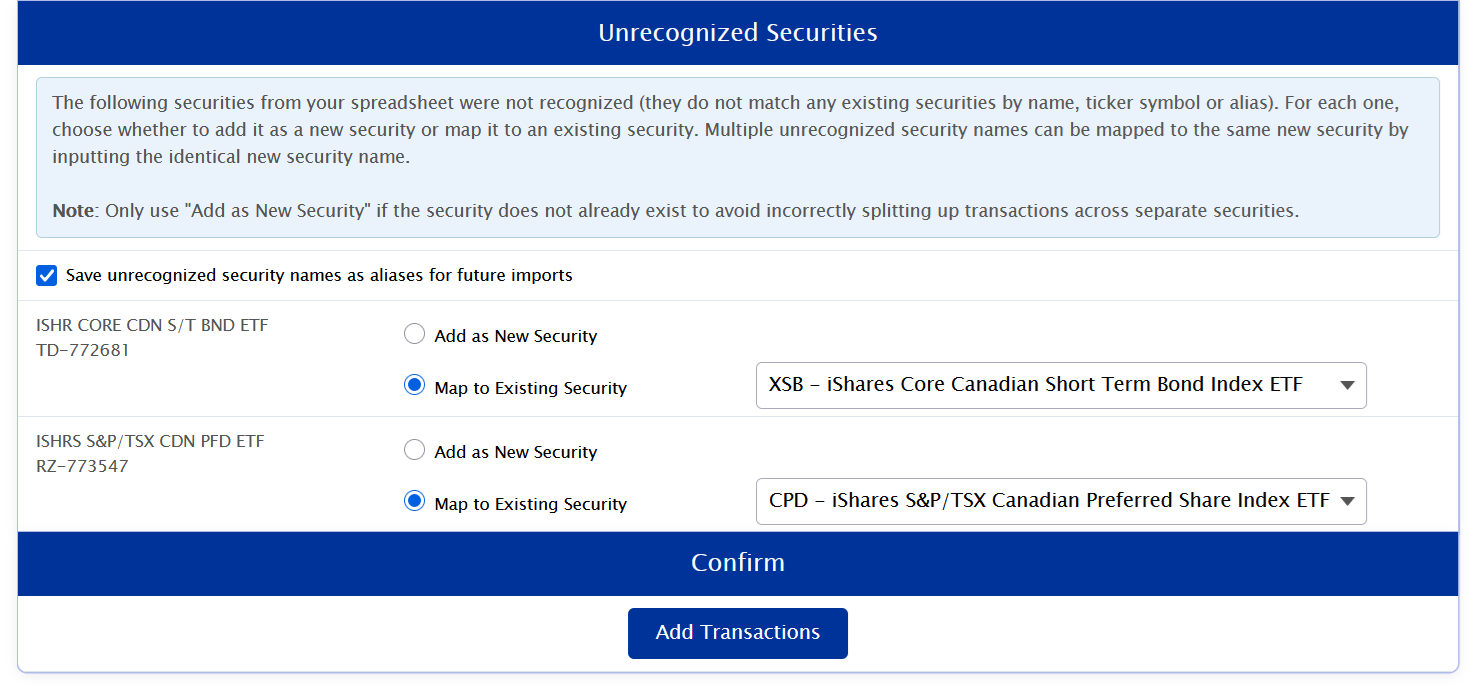
- Click “Add Transactions” to finalize the data import.

Repeat these steps periodically to enable your complete data from your TD Direct Investing account to be included in your ACB/capital gains calculations on AdjustedCostBase.ca.